HOW TO PUT IPHONE INTO DFU MODE

First Step to upload custom firmware on iPhone.

IPHONE TETHERING ON VODAFONE INDIA !

Get Vodafone India iPhone Mobile Settings here.

JAILBREAK IPHONE ON IOS7

Steps on how to Jailbreak iPhone on Firmware v7

DOWNGRADE BASEBAND

Downgrade for iPhone 3GS/3G

CONFIGURE GMAIL ON IPHONE

Now its easy to setup gmail account.

28 February 2010

Download Free APPS For IPhone

Please visit the site: http://apptrackr.org/ for free Apps on IPhone...it is a true replacement for site: http://appulo.us/


http://www.ja6636.com/iHome/ This site has all the Bookmark sites for IPhone APPS, you can visit theses sites and download all cracked applications.

14 February 2010

Jailbroken iPhone Firmware 3.1.3 2G

Apple has just introduced a new firmware  3.1.3 for iPhone.

You can Download the latest Firmware for iPhone from the below mentioned links:-
Original Iphone Firmware (3.1.3) 2G: here 

After this please download the RedSn0w v0.9.4 from here (windows) and from here (Mac).
Now applying  the old ways of pwning an iPhone 2G.
1)Update your iPhone 2G to the latest firmware v3.1.3.
2)Run the Application Redsn0w v0.9.4 and browse the firmware v 3.1.2 which is the oldest firmware and click on Next.
3)After this Check Options  “Install Cydia”and “Unlock” options for iPhone 2G and click on Next.
4)Now make sure your device is both OFF and PLUGGED IN to the computer before you click “Next”.
5)Connect your device in recovery mode by pressing the Power and buttons continuously.6)At this stage you will be presented with a screen where you will have to quickly hold “Power” button and then while holding the “Power” button, you will now have to hold “Home” button too. Now after few seconds release “Power” button but keep holding “Home” button until installation begins.
7)Sit back and enjoy while redsn0w will do all the rest for you. Once done, your iPhone 2G will restart automatically and you will find it jailbroken with iPhone firmware version 3.1.3.


If in between the steps Redsn0w ask for Bootloader files, select the Bootloader file 4.6 and 3.9 after downloading it from - BL 3.9 - BL 4.6 


Please dont try these steps on 3G or 3GS, your iPhone will get locked  and will not recover.

04 February 2010

Tips to Sync IPhone Fast


Big Head ache is when you don't have time to update your iPhone and you are moving out. So now i am going to post the tips which can make your iPhone Sync fast.


Try these tips:


1>Whenever you sync your iPhone the first thing you are able to see is your iPhone getting backed-up and then it starts installing Apps and syncing Music, To Avoid this you can click on the cross icon which is on the display screen present just below where it says "iTunes". The times you click on the cross it keeps on missing the steps of Sync.


Sequence of iPhone getting Sync is : Backing up iPhone >> Syncing Applications >>Syncing Ring tones >> Syncing Music....Movies....


If you crossed once then iPhone wouldn't backup and if you click on crossed again it will miss the step to syncing Apps. So this way you can only Sync those item's which you need your iPhone to Sync at that moment. Try it ! it saves lot of time.

22 December 2009

How to get into Appulo.us site

                                           How to get into Appulo.us site


1. Open site: http://appulo.us/appdb/
2. If it Prompt you to type any Word in the Toll Bridge.


The Troll Bridge

Kyek modified a Greasemonkey plugin to allow you to see if an Appulous IPA link was dead before you clicked it. The original plugin was the ________ Links Checker.(Click here if you hate this)


3. Please type " Cavern " and you will be able to login with no issues.


This site is used to download all CRACK Application for a Jailbreak iPhone.

08 November 2009

iPhone Firmware Download

1.0.0: iPhone1,1_1.0_1A543a_Restore.ipsw
1.0.1: iPhone1,1_1.0.1_1C25_Restore.ipsw
1.0.2: iPhone1,1_1.0.2_1C28_Restore.ipsw
1.1.1: iPhone1,1_1.1.1_3A109a_Restore.ipsw
1.1.2: iPhone1,1_1.1.2_3B48b_Restore.ipsw
1.1.3: iPhone1,1_1.1.3_4A93_Restore.ipsw
1.1.4: iPhone1,1_1.1.4_4A102_Restore.ipsw
2.0.0 (2G): iPhone1,1_2.0_5A347_Restore.ipsw
2.0.0 (3G): iPhone1,2_2.0_5A347_Restore.ipsw
2.0.1 (2G): iPhone1,1_2.0.1_5B108_Restore.ipsw
2.0.1 (3G): iPhone1,2_2.0.1_5B108_Restore.ipsw
2.0.2 (2G): iPhone1,1_2.0.2_5C1_Restore.ipsw
2.0.2 (3G): iPhone1,2_2.0.2_5C1_Restore.ipsw
2.1.0 (2G): iPhone1,1_2.1_5F136_Restore.ipsw
2.1.0 (3G): iPhone1,2_2.1_5F136_Restore.ipsw
2.2.0 (2G): iPhone1,1_2.2_5G77_Restore.ipsw
2.2.0 (3G): iPhone1,2_2.2_5G77_Restore.ipsw
2.2.1 (2G): iPhone1,1_2.2.1_5H1_Restore.ipsw
2.2.1 (3G): iPhone1,2_2.2.1_5H11_Restore.ipsw
3.0.0 (2G): iPhone1,1_3.0_7A341_Restore.ipsw
3.0.0 (3G): iPhone1,2_3.0_7A341_Restore.ipsw
3.0.0 (3GS): iPhone2,1_3.0_7A341_Restore.ipsw
3.0.1 (2G): iPhone1,1_3.0.1_7A400_Restore.ipsw
3.0.1 (3G): iPhone1,2_3.0.1_7A400_Restore.ipsw
3.0.1 (3GS): iPhone2,1_3.0.1_7A400_Restore.ipsw
3.1.0 (2G): iPhone1,1_3.1_7C144_Restore.ipsw
3.1.0 (3G): iPhone1,2_3.1_7C144_Restore.ipsw
3.1.0 (3GS): iPhone2,1_3.1_7C144_Restore.ipsw
3.1.2 (2G): iPhone1,1_3.1.2_7D11_Restore.ipsw
3.1.2 (3G): iPhone1,2_3.1.2_7D11_Restore.ipsw 
3.1.2 (3GS): iPhone2,1_3.1.2_7D11_Restore.ipsw
3.1.3 (2G): iPhone1,1_3.1.3_7E18_Restore.ipsw
3.1.3 (3G): iPhone1,2_3.1.3_7E18_Restore.ipsw
3.1.3 (3GS): iPhone2,1_3.1.3_7E18_Restore.ipsw
4.0.0 (3G): iPhone1,2_4.0_8A293_Restore.ipsw
4.0.0 (3GS): iPhone2,1_4.0_8A293_Restore.ipsw
4.0.0 (4): iPhone3,1_4.0_8A293_Restore.ipsw
4.0.1 (3G): iPhone1,2_4.0.1_8A306_Restore.ipsw
4.0.1 (3GS): iPhone2,1_4.0.1_8A306_Restore.ipsw
4.0.1 (4): iPhone3,1_4.0.1_8A306_Restore.ipsw
4.0.2 (3G): iPhone1,2_4.0.2_8A400_Restore.ipsw
4.0.2 (3GS): iPhone2,1_4.0.2_8A400_Restore.ipsw
4.0.2 (4): iPhone3,1_4.0.2_8A400_Restore.ipsw
4.1.0 (3G): iPhone1,2_4.1_8B117_Restore.ipsw
4.1.0 (3GS): iPhone2,1_4.1_8B117_Restore.ipsw
4.1.0 (4): iPhone3,1_4.1_8B117_Restore.ipsw
4.2.1 (3G): iPhone1,2_4.2.1_8C148_Restore.ipsw
4.2.1 (3GS): iPhone2,1_4.2.1_8C148a_Restore.ipsw
4.2.1 (4): iPhone3,1_4.2.1_8C148_Restore.ipsw

29 October 2009

Transfer files from iPod and iPhone

Transfer files from iPod and iPhone to PC.

Download and Install Easy Soft Application from here
This software includes manager for iPod and iPhone Ringtone convertor.
 
Part 1: How to manage your iPod/iPhone 
Step 1: Run this software and select “iPod Manager”.
Step 2:Connect your iPod/iPhone to your computer via USB cable
Step 3: According your needs to select the the functions
a. If you want to import video/audio files to your iPod, click "PC to iPod" button, and then follow the instruction on it.
b. If you want to transfer iPod files to PC, click "iPod to PC" button, and then follow the instruction on it.
Tip: Click "Search" button to use "Track Filter" function to help you quickly browse your library by genre, artist and album.
c. If you want to transfer iPod to iPod, click "iPod to iPod" button, and then follow the instruction on it.
Step 3: After you have finished the above two steps, just follow the instructions on it to complete your demands.
So we can say, with it you can fully enjoy your iPod without other support!

Part 2: How to make iPhone Ringtone
Step 1: Run this software and select “iPhone Ringtone Converter”.
Step 2: Input source files
The source files can be any video and audio files, such as MP4, H.264/AVC, AVI, MPEG, WMV, MP3, WMA, WAV, etc.
Step 3: Pre-listen music and choose the clip
You can drag the slide bar to get music clip to convert, or type the start & end time in the corresponding text box directly.
Step 4: Set output destination
You can choose the output folder by clicking "Browse" button on the right side of the "Local Output File" label.
Step 5: Start the conversion
After all the settings are finished, click "Generate" button to start creating your own iPhone ringtone. During the creation, you can check the process by the progress bar at the bottom.

Other Tools related to above are:

4Easysoft Total Video Converter:
This converter can help you convert among all mainstream video and audio formats and help you take videos easily on PSP, PS3, iPod, iPhone, Apple TV, Xbox or other digital devices.
4Easysoft AVI Converter:
This is an easy-to-use video converter which can convert mainstream video files to AVI format., such as MOV, WMV, ASF, 3GP, VOB, MPG/MPEG2, FLV (Flash Video) and HD video files to help you enjoy any video and movie on your Archos GMini402, iRiver PMP-100, Creative Zen, etc.

26 October 2009

Setup Gmail Account in iPhone

Setup Gmail on iPhone ! 

First step is to Backup your iPhone so that you dont loose anything.

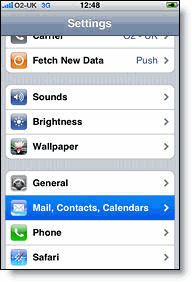
Open the Settings application on your device's home screen.
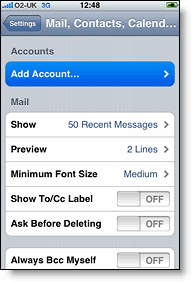
2. Open Mail, Contacts, Calendars.
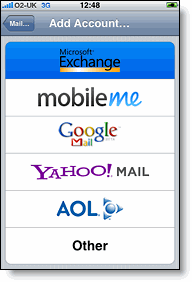
3. Tap Add Account....
4. Select Microsoft Exchange.


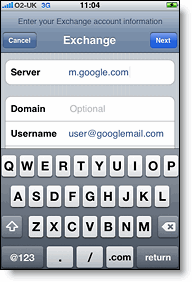
Enter Account Info

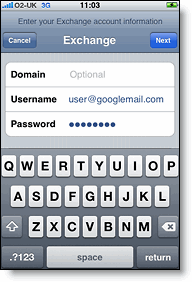
5. In the Email field, enter your full Google Account email address. If you use an @googlemail.com address, you may see an "Unable to verify certificate" warning
when you proceed to the next step.
6. Leave the Domain field blank.
7. Enter your full Google Account email address as the Username.
8. Enter your Google Account password as the Password.
9. Tap Next at the top of your screen.
9a. Choose Accept if the Unable to Verify Certificate dialog appears.
10. A new Server field will appear. Enter m.google.com.
11. Press Next at the top of your screen again.


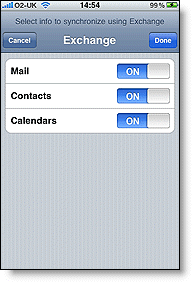
12. Select the Google services you want to sync.

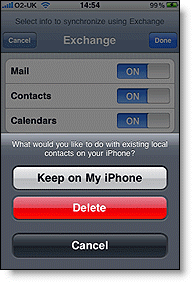
13. Unless you want to delete all the existing Contacts and Calendars on your 
phone, select the Keep on my iPhone option when prompted. This will also 
allow you to keep syncing with your computer via iTunes.

If you want to sync only the My Contacts group, you must choose to 
Delete Existing Contacts during the Google Sync install when prompted.
If you choose to keep existing contacts, it will sync the contents of the 
"All Contacts" group instead.


Broadcast Yourself from iPhone

Broadcast your live video from iPhone !

Ustream is the only app from which you can broadcast your live video. It also works on non jailbreaking iPhones.


Above i have provided a video link to watch how Ustream is used in iPhone. This App is currently available in Apps store.

Twitter Delicious Facebook Digg Stumbleupon Favorites More