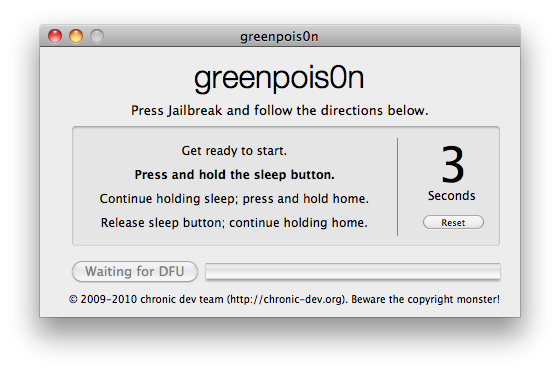
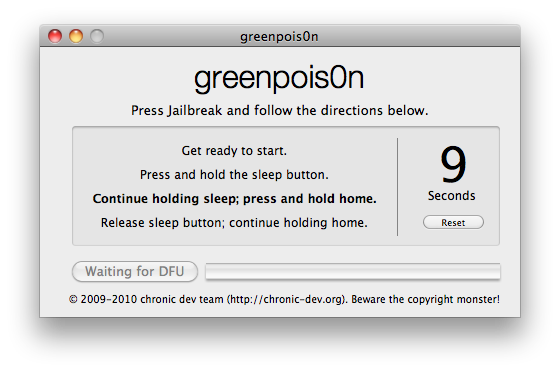
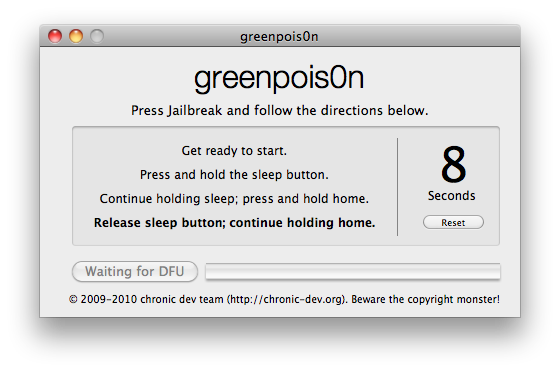
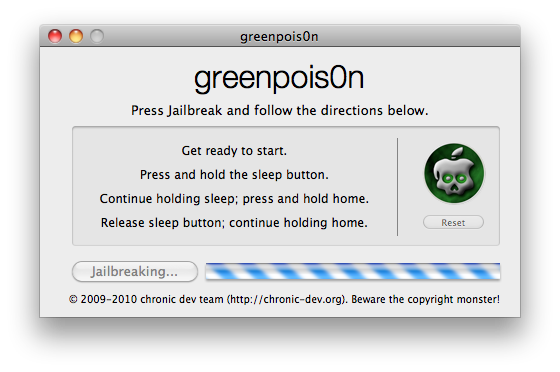
Steps on how to Jailbreak iPhone 4S and iPad 2 on Firmware 5.0.1
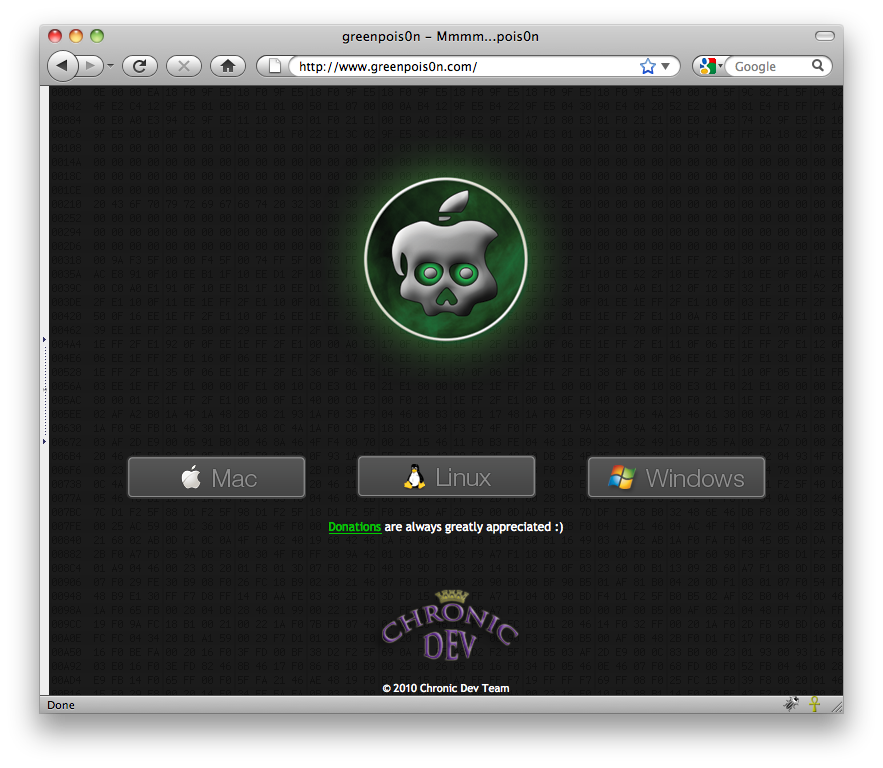
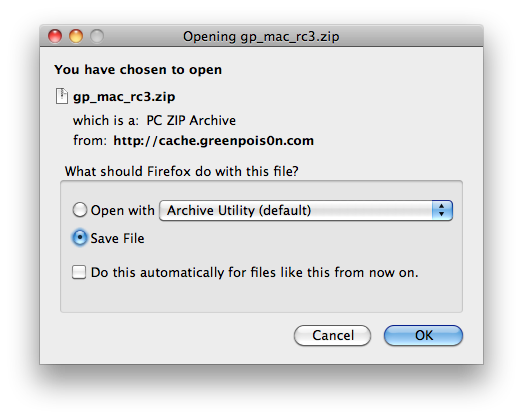
1. Download the Application which is only available for Mac till now. Application is named as Absinthe. You can Download this Absinthe from the link mentioned - link
2. The supported devices and firmware for Absinthe are:
iPhone 4S running iOS 5.0, 5.0.1 (9A405 and 9A406)
iPad 2 Wifi/GSM/CDMA running iOS 5.0.1
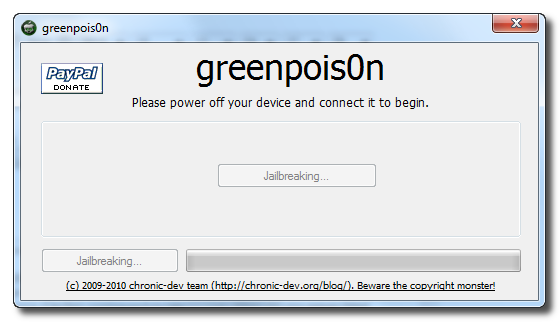
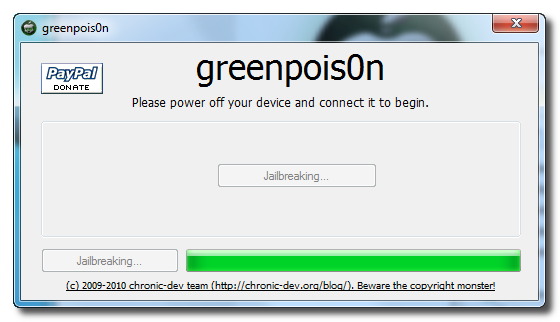
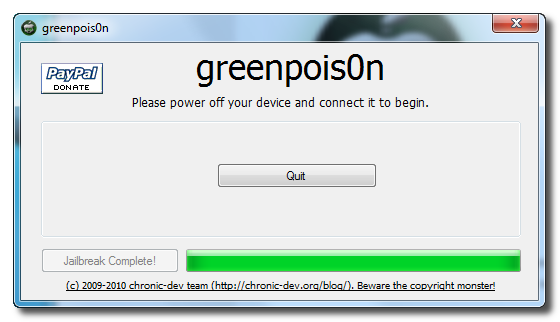
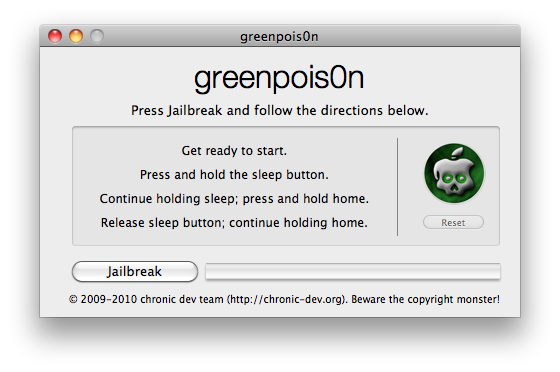
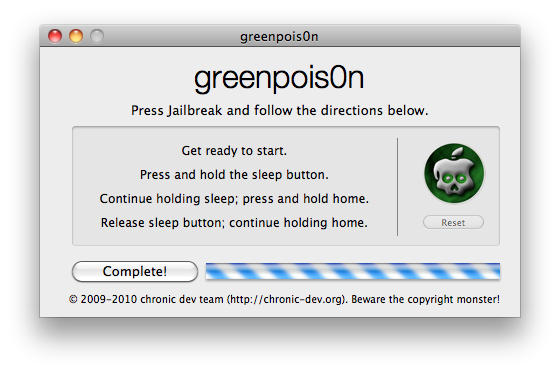
3. Run the File Absinthe.app after double tapping it and it will look like...the picture mentioned below.

4. Just Remember to backup all your stuff before Jailbreaking your iPhone.
5. To back up go to Itunes and connect your iPhone and then on the left side where you can see your iPhone detected in itunes. Right Click on that and click on backup.
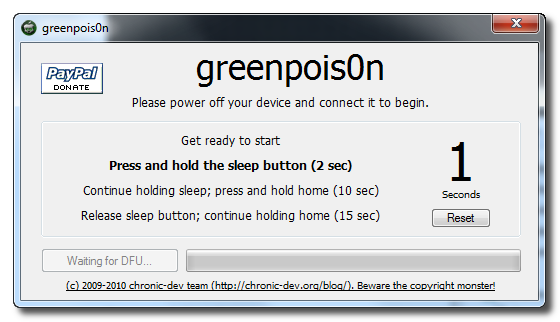
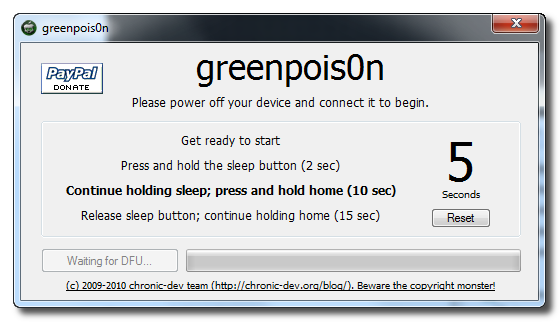
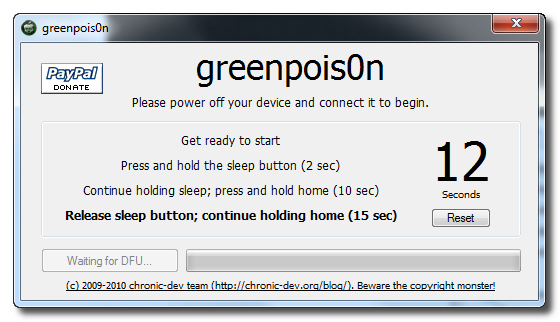
6. Now after doing the backup of your iPhone 4S. Place your iPhone 4S into DFU mode. If you dont know how click on the link mentioned here - link
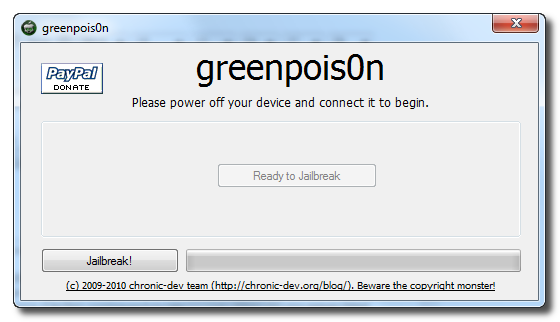
7. After placing your iPhone 4S into DFU mode go to that Application Absinthe and click on the button which has written Jailbreak on it. After that please wait for couple of minutes and then you are done.
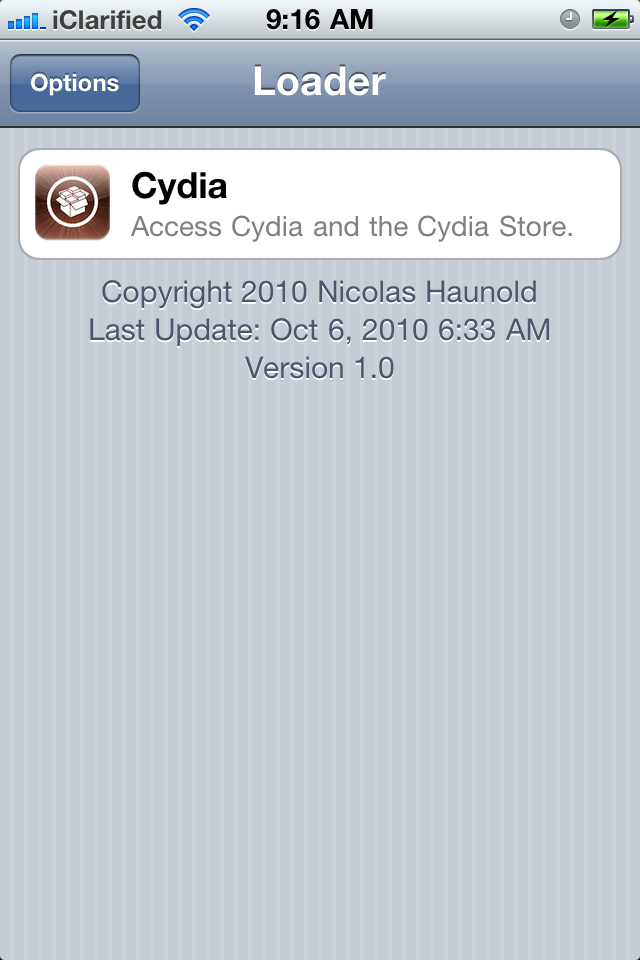
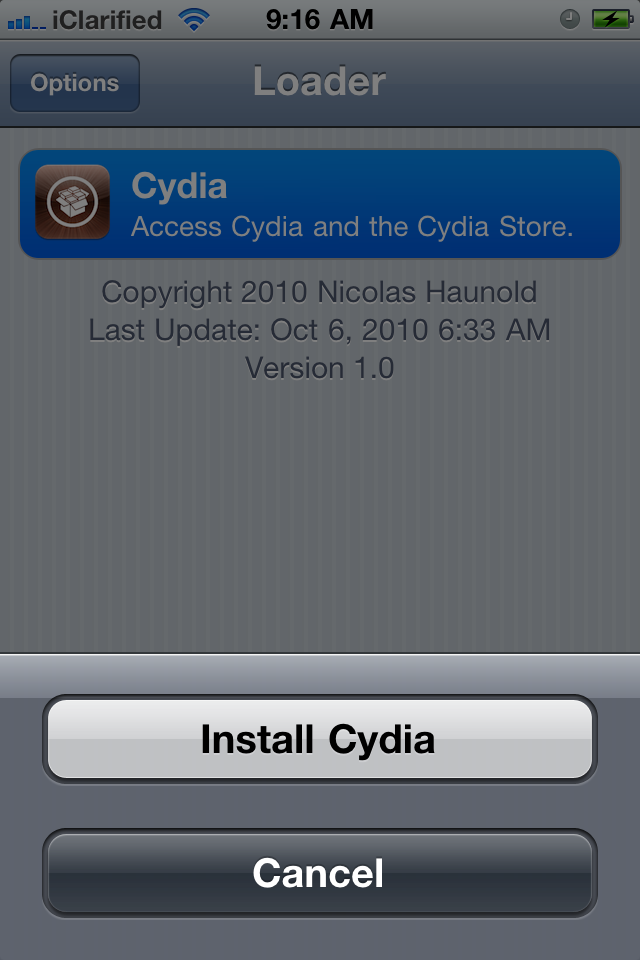
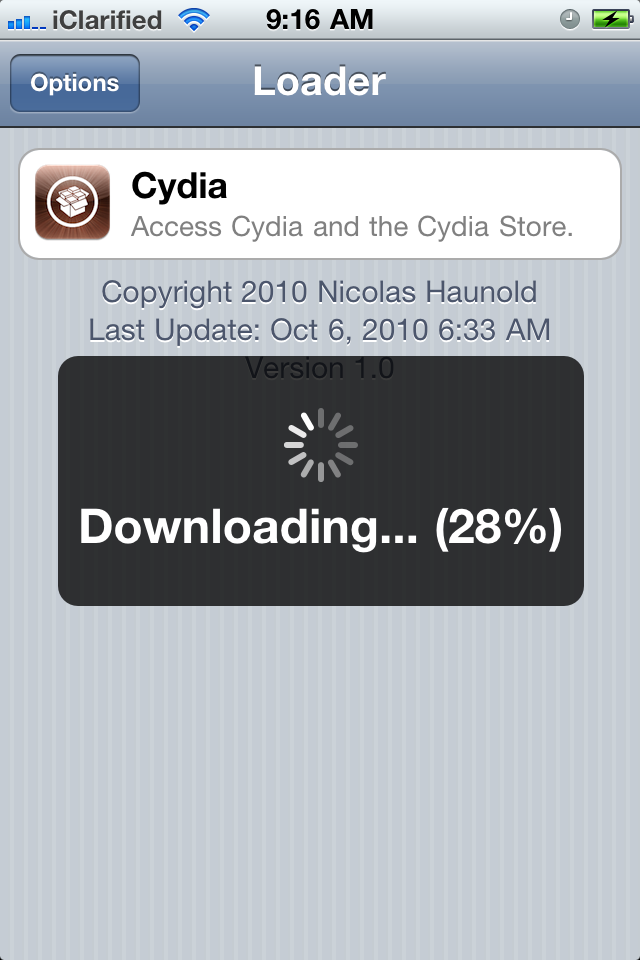
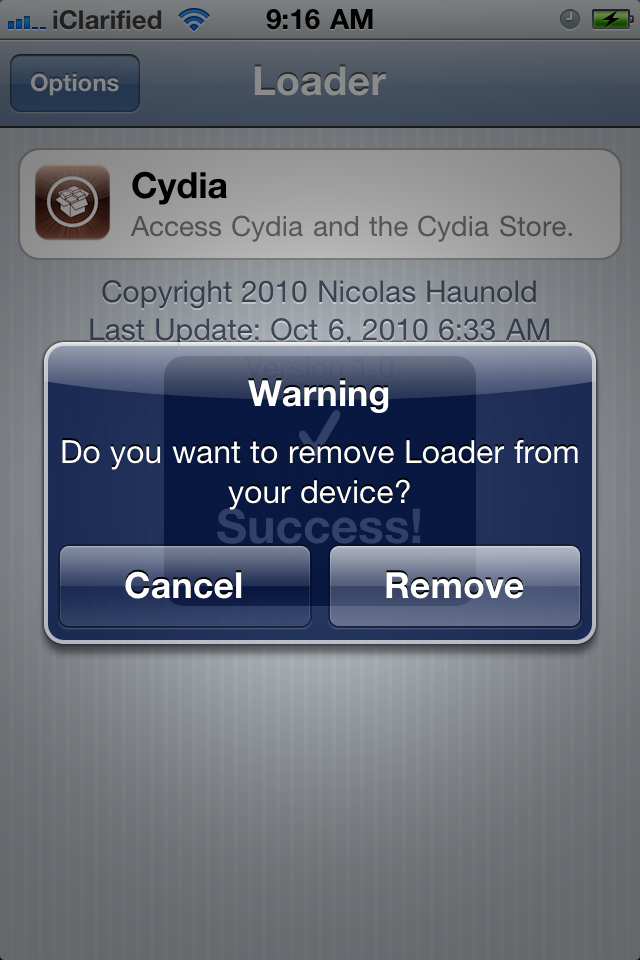
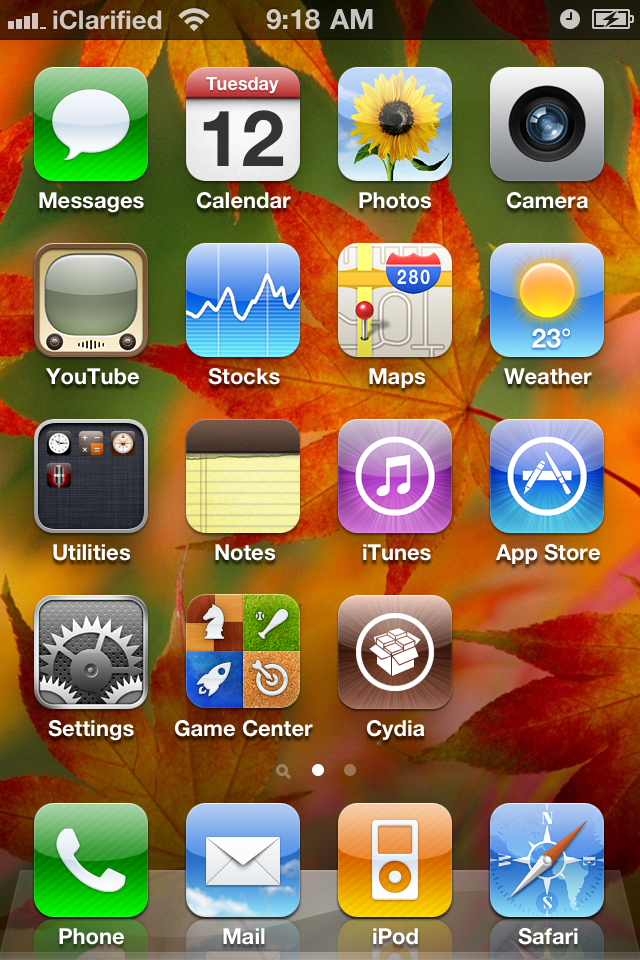
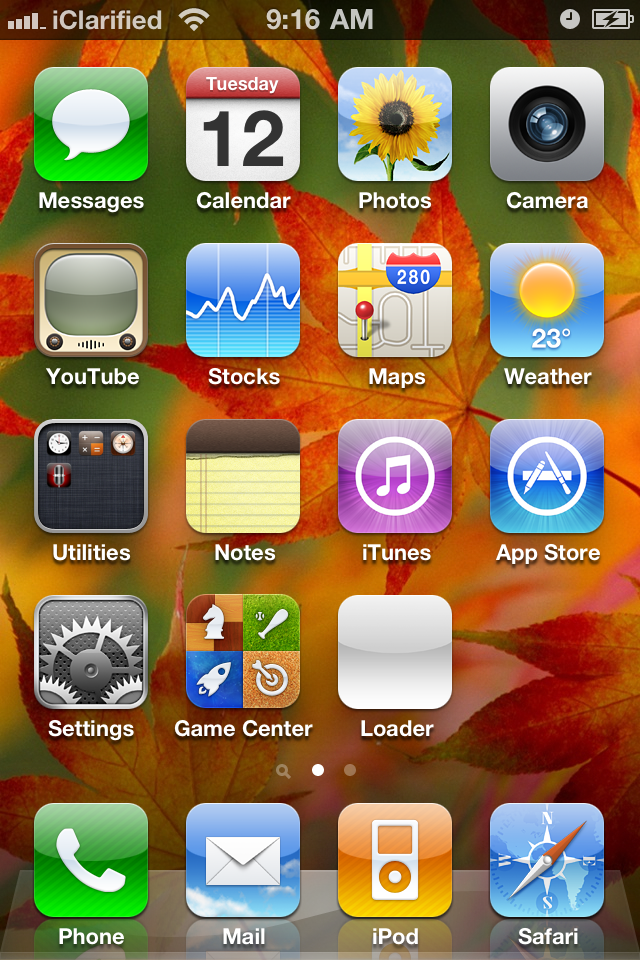
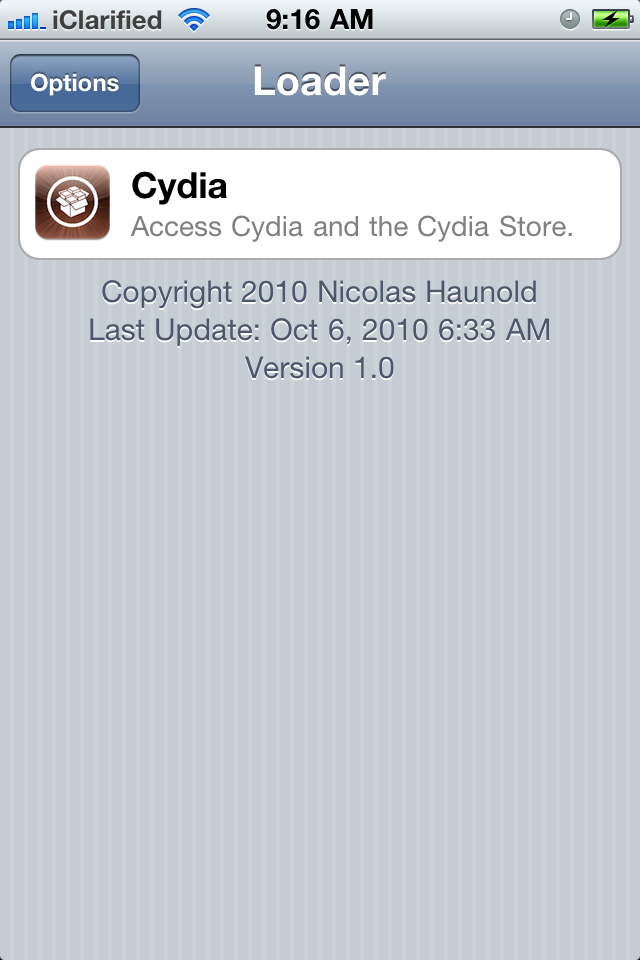
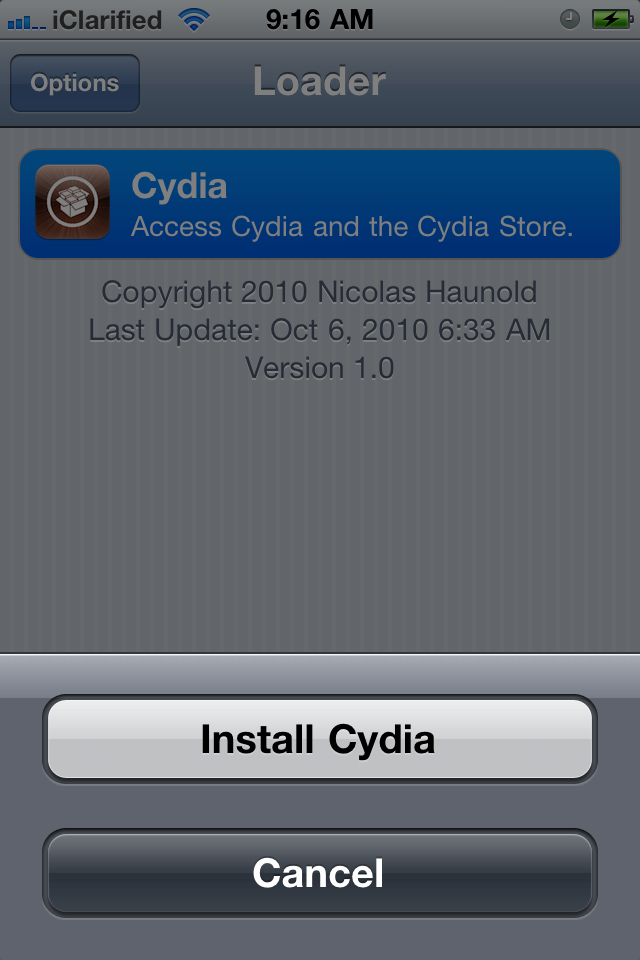
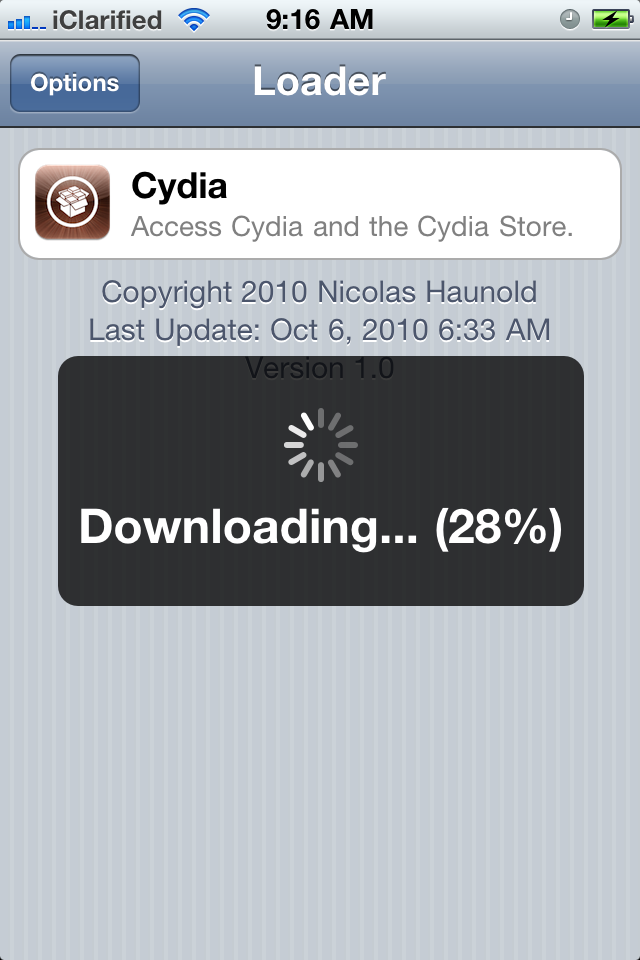
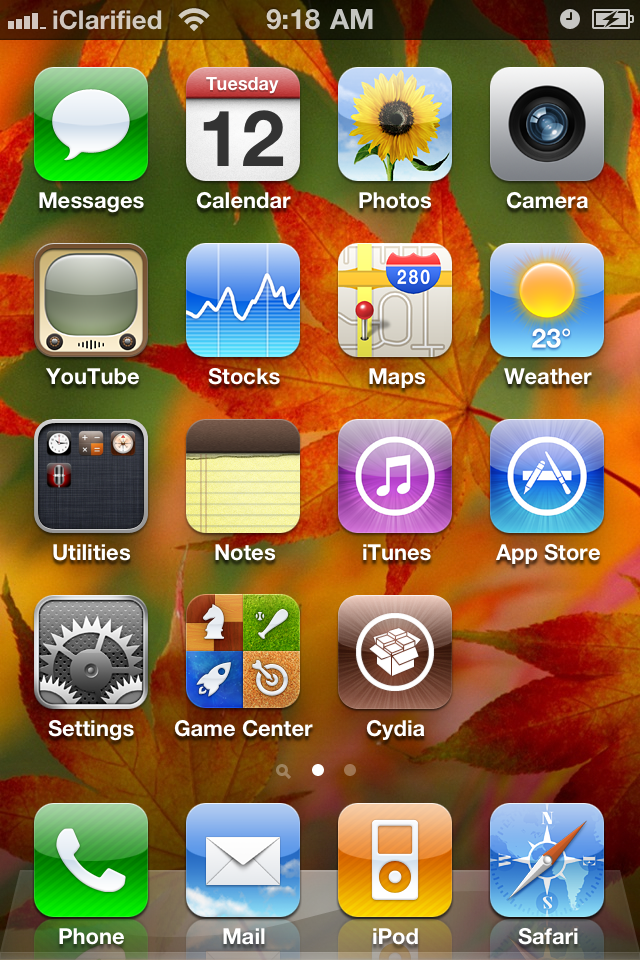
8. You will get the Application named Absinthe on you iPhone 4S, now opened that application on your iPhone 4S and then download the Cydia application through it. When done you will get the Cydia on you iPhone 4S.
Do Remember it is just a Jailbreak not a Carrier unlock and please remove the passcode before doing the Jailbreak or else you will get the error message as mentioned in the picture. If you get any issues you can message me down below. i will reply. For now Chao !!!
Troubleshooting --
1. Download the Application which is only available for Mac till now. Application is named as Absinthe. You can Download this Absinthe from the link mentioned - link
2. The supported devices and firmware for Absinthe are:
iPhone 4S running iOS 5.0, 5.0.1 (9A405 and 9A406)
iPad 2 Wifi/GSM/CDMA running iOS 5.0.1
3. Run the File Absinthe.app after double tapping it and it will look like...the picture mentioned below.

4. Just Remember to backup all your stuff before Jailbreaking your iPhone.
5. To back up go to Itunes and connect your iPhone and then on the left side where you can see your iPhone detected in itunes. Right Click on that and click on backup.
6. Now after doing the backup of your iPhone 4S. Place your iPhone 4S into DFU mode. If you dont know how click on the link mentioned here - link
7. After placing your iPhone 4S into DFU mode go to that Application Absinthe and click on the button which has written Jailbreak on it. After that please wait for couple of minutes and then you are done.
8. You will get the Application named Absinthe on you iPhone 4S, now opened that application on your iPhone 4S and then download the Cydia application through it. When done you will get the Cydia on you iPhone 4S.
Do Remember it is just a Jailbreak not a Carrier unlock and please remove the passcode before doing the Jailbreak or else you will get the error message as mentioned in the picture. If you get any issues you can message me down below. i will reply. For now Chao !!!
Troubleshooting --
- Camera roll will be empty if the jailbreak is incomplete. Rerun the app once to fix, and then another time to complete Jailbreak.
- If the Absinthe webclip shows “Error establishing a database connection”, please go to Settings, turn on VPN and wait instead.
- The VPN connection will give an error. This is normal. A reboot should happen a few moments after the error.
- Just reboot and redo the jailbreak if you have problems.
- When jailbreaking: Do not have a passcode set. Do not have your own VPN setup (Absinthe needs to setup its own).
- If Absinthe crashes, reboot your DEVICE and try again.
- Toggle VPN only AFTER Absinthe says it’s done, or it will not work. VPN SHOULD error and then reboot soon. If it does not, rerun Absinthe!