HOW TO PUT IPHONE INTO DFU MODE

First Step to upload custom firmware on iPhone.

IPHONE TETHERING ON VODAFONE INDIA !

Get Vodafone India iPhone Mobile Settings here.

JAILBREAK IPHONE ON IOS7

Steps on how to Jailbreak iPhone on Firmware v7

DOWNGRADE BASEBAND

Downgrade for iPhone 3GS/3G

CONFIGURE GMAIL ON IPHONE

Now its easy to setup gmail account.

Showing posts with label 4.0.0 firmware. Show all posts

30 January 2011

iPhone Themes Store via Cydia


How to get Themes on iPhone

  1. Launch Cydia
  2. Go to the Manage tab
  3. Tap on “Sources”
  4. Now hit the “Edit” and then “Add” buttons.
  5. Input the following repo url : http://www.themeitapp.com/repo .
  6. Now go to your just added repository and download Theme it.app and start enjoying great themes.


30 November 2010

Ultrasn0w Unlock v1.1.2 out for iPhone Firmware 4.2.1 3GS & 3G

As per the Dev Team the new Ultrasn0w Unlock for IOS4 firmware v4.2.1 is released. Please go through the instructions provided by the Dev Team below :


" Today we’re pleased to announce our free carrier unlock for iPhone3G/3GS owners with a baseband later than 05.13.04 ".  The unlock for that baseband exploited the AT+XAPP command, thanks to a crash initially discovered by @sherif_hashim (@Oranav also found this crash).  So what hole are we exploiting today, since Apple closed that AT+XAPP hole?  Well, we’re exploiting the exact same hole!
It turns out that the very first iPad firmware 3.2.2 has baseband version 06.15.00 still vulnerable to AT+XAPP.  The iPad baseband is built for the exact same baseband chip as the iPhone3G/3GS — they’re fully compatible! Some of us have been running 06.15 for weeks now on our iPhones in preparation for this release.
Since 06.15 is a higher version than 05.14 or 05.15 (where AT+XAPP is gone), anyone stuck at those versions can simply upgrade to 06.15 to unlock again!  Luckily for us, Apple *still* provides the iPad FW 3.2.2 with this vulnerable baseband right from their own servers. (Grab it now, before they take it down!)
We’ve been busy updating both PwnageTool and redsn0w to make the baseband update as seamless as possible.
  1. First up is “PwnageTool 4.1.3 Unlock Edition”.  It has a special dialog box which will ask you if you want to update to the iPad baseband.  You must already have the iPad 3.2.2 IPSW on your computer (see the above link)….so just point PwnageTool at it (or let it find it on its own if you’re in “simple” mode).
  2. Directly after PwnageTool 4.1.3 is available, the official ultrasn0w repohttp://repo666.ultrasn0w.com will be updated with ultrasn0w 1.2, which covers iPhone 4 baseband 01.59.00 and iPhone 3G/3GS basebands 04.26.08, 05.11.07, 05.12.01, 05.13.04 and now 06.15.00.
  3. Finally, we’ll release an update to redsn0w today for those without Macs and can’t run PwnageTool.  The new redsn0w will give you the option to update your baseband to 06.15 too.
WARNING — YOU DO THIS AT YOUR OWN RISK!  PLEASE UNDERSTAND THE CONSEQUENCES OF UPDATING TO 06.15.
  1. There is no way to come back down from 06.15, and there’s no hiding the baseband version from Apple.  You’ll be voiding your warranty in a very obvious way.
  2. If some future baseband comes out with a critical fix, you won’t be able to update to it if it remains down in the 05.xx sequence (then again, you wouldn’t update to it if you wanted to keep your unlock anyway).
  3. Starting with FW 4.2.1 if you have 06.15 on your iPhone you won’t ever be able to restore to stock firmware (it will fail).  You’ll need to only restore to custom IPSWs (then again, if you’re unlocker you should already be doing that).
Certainly don’t update to 06.15 if you don’t need to!  Only do this if you need the unlock and you’re stuck on 05.14 or 05.15, and you’re willing to assume the above risks.
This PwnageTool also contains a 4.2.1 bundle for iPhone3G owners…for all else, it’s still only 4.1.  If you have an iPhone3GS with an old bootrom, the new redsn0w will handle 4.2.1 for you (in fact it covers 4.2.1 for all devices, even though some of them are still tethered at 4.2.1 until @comex can work some untethering magic).  iPhone3GS users with old bootroms who want to go to 4.2.1 should not use this PwnageTool! Update to stock 4.2.1 first, then use the upcoming redsn0w to update your baseband.
Please feel free to use our comments section for questions.  We have some very knowledgeable and helpful moderators:  angiepangie, Confucious, dhlizard, and Frank55!
Official Bittorrent Releases

16 November 2010

Android 2.2.1 (Froyo) on iPhone 3G / 2G with Bootlace

How to install Android 2.2.1 Froyo on iPhone using Bootlace without a computer. Bootlace 2.1 lets you install Android 2.2.1 on iPhone 3G / iPhone 2G without any need of a computer using an installer available in Cydia.


Requirements

  • iPhone 3G: iOS 4.1, 4.0.1, 4.0.2, 4.0, 3.1.3 and 3.1.2, , 4.0, .1, 4.0.2.
  • iPhone 2G: iOS 3.1.3 and 3.1.2.
  • Your iPhone Must be jailbroken. Bootlace currently supports the following Jailbreak tools:
    • PwnageTool
    • RedSn0w
    • Blackra1n

How to Install Android on iPhone using Bootlace

We assume that your iPhone 3G/2G is already jailbroken using the above mentioned jailbreak tools.

Step 1

Open Cydia. Go to Manage > Sources and add the following Source/repo:
http://repo.neonkoala.co.uk
Step 2
Once you’ve added the above mentioned repo, go to Search tab, search for Bootlace and install it.
Step 3
  • When done, press the Home button to close Cydia. Now open Bootlace from your iPhone Springboard.
  • Bootlace will download the kernel and patch it then.
  • Once done, Reboot your iPhone.
Step 4
  • Open Bootlace. Hit the OK button.
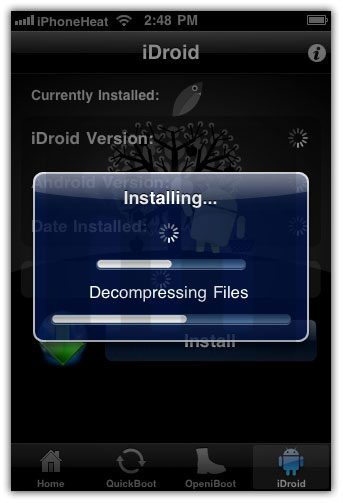
  • Select iDroid tab at bottom and then hit the Install button.
install android 2.2.1 froyo on iPhone

Step 5

Tap the OK button. Bootlace will download and install android on iPhone.
install android 2.2.1 froyo on iPhoneinstall android 2.2.1 froyo on iPhoneinstall android 2.2.1 froyo on iPhone

Step 6

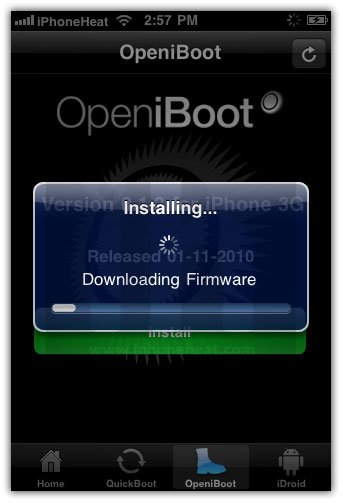
Once the Android installation process is completed, go to OpeniBoot tab at bottom and hit the install button.
install android 2.2.1 froyo on iPhoneinstall android 2.2.1 froyo on iPhoneinstall android 2.2.1 froyo on iPhone

Step 7

  • Once done, tap on the Configure button.
  • Make your choice, and hit save button.
install android 2.2.1 froyo on iPhone
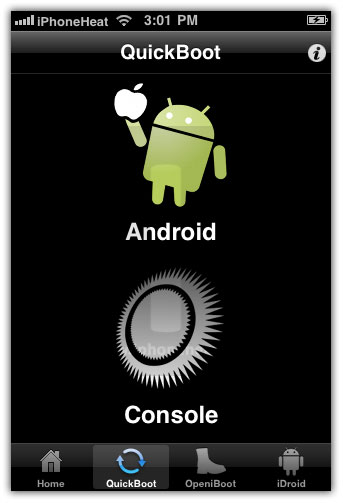
Go to Quickboot tab and tap on Android to boot your iPhone into Android 2.2.1 Froyo.
install android 2.2.1 froyo on iPhoneinstall android 2.2.1 froyo on iPhone
Future Android for iPhone updates can be found under iDroid tab (Step 4).

SkyFire Browser an option to play Flash on iPhone

Experience the world's hottest mobile browser with Skyfire 2.0 for iPhone.

Vibrant Video
watch videos, including Flash, while browsing your favorite sites


Explore Related
find related content & media to the page you're browsing


Social Sharing
one-click sharing with facebook and twitter


User Agent Switching
load pages for either mobile or desktop


Private Browsing
keeps your browsing private, with no data trail


28 October 2010

FolderEnhancer supports iOS 4.1 firmware

FolderEnhancer has been updated to now supports iOS 4.1 firmware. FolderEnhancer is a jailbroken tweak which brings some cool improvements to the iOS folders capability.
folderenhancer
iOS 4 brought with it the ability to put apps and bookmarks into folders. Unfortunately, the implementation is quite limited. FolderEnhancer takes this feature and improves upon it, making it a viable solution for organizing and accessing your apps.

FolderEnhancer Features

  • Open folders faster.
  • Add up to 320 icons to a folder (20 pages, 16 per page).
  • Create folders inside of folders.
  • Create folders on the dock.
  • Supports Iconoclasm for custom layouts inside of folders.
  • Extends MultiIconMover to allow moving multiple icons into/out of folders.
  • Options include hiding the folder name and wallpaper, as well as disabling animations.

What’s New In This Version

  • NEW: Added support for iOS 4.1.
  • FIX: With “Close on App Launch” OFF, closing an app launched from a folder while the task switcher was visible would cause the folder to fail to reappear.
  • FIX: With wallpaper off, toggling the task switcher would cause parent folders to become visible, appear stacked.
You can purchase and download FolderEnhancer from the Cydia Store for $1.99. CategoriesSB owners can get the app at $0.99 until the end of October.

11 October 2010

Jailbreak iPhone 4, 3GS iOS 4.1 with Limera1n

Geohot has released Limera1n, the iOS 4.1 jailbreak for iPhone 4, iPhone 3GS, iPad and iPod Touch 4G, iPod Touch 3G. Download Limera1n jailbreak from the link below. Limera1n is an untetheredjailbreak for iOS 4.1 on iPhone 4, 3GS, iPad and iPod Touch 4G, 3G.

Limera1n Supports:

  • iPhone 4
  • iPhone 3GS (New bootrom support broken > Fix pending)
  • iPad
  • iPod Touch 4G
  • iPod Touch 3G
Limera1n is currently available for Windows OS only. Mac and Linux version will be out soon.

How to Jailbreak iPhone 4, 3GS iOS 4.1 with Limera1n

Step 1

Step 2

Execute the downloaded Limera1n.exe and hit the make it ra1n button

Step 3

Now connect your iPhone 4 / iPhone 3GS
Your device will go into Recovery Mode

Step 4

Hold down the Home + Power buttons.
Release the Power button and keep holding the Home button.
You iPhone 4/3GS will now be in DFU Mode. Then Limera1n logo will appear on your iPhone screen.
The follow message will appear when Limera1n is done with the jailbreak process

Step 5

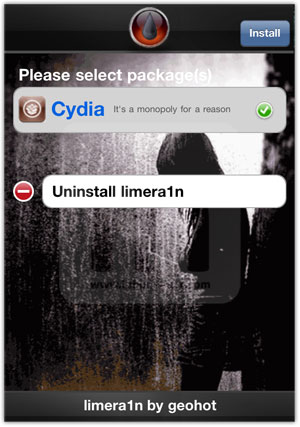
Open the Limera1n app from your iPhone home screen and install Cydia from there. Once Cydia is installed, Reboot your iPhone and you’re Done!
jailbreak iphone 4 3gs iOS 4.1
That's it Done !

01 October 2010

UltraSn0w unlock for iPhone 4, 3GS and 3G to version 1.1-1

iPhone Dev-Team has updated UltraSn0w unlock for iPhone 4, 3GS and 3G to version 1.1-1. UltraSn0w 1.1-1 fixes the poor standby battery life for all those who unlocked iPhone 4, 3GS or 3G with earlierUltraSn0w 1.0-1 version.
If your iPhone battery drains pretty fast even on standby after unlocking with UltraSn0w 1.0-1, then you’re advised to install UltraSn0w 1.1-1 update from Cydia.

Just like the previous release, UltraSn0w 1.1-1 can unlock iPhone 4, 3GS and 3G running any firmware up to iOS 4.0.1 with baseband 01.59.00, 05.13.04, 05.12.01, 05.11.07, and 04.26.08.
Unlocking iPhone let you use SIM from any carrier. Steps to unlock iPhone 4, iPhone 3GS and iPhone 3G remains same. Step-by-step guide to unlock all iPhones can be found here

16 September 2010

iWebcamera on the iPhone

 iWebcamera on the iPhone


drahtwerk has announced the release and immediate availability of the iWebcamera 2.0 software update. iWebcamera is the only application on the App Store that turns the iPhone into a real, driver-based webcamera. With iWebcamera the iPhone can be used as webcamera in applications like Skype, Windows Live Messenger, YouTube and other webcamera enabled desktop applications. iWebcamera 2.0 introduces full support for the iPhone 4 including Retina display graphics, support for both cameras and more.

The release of iWebcamera 2.0 was initially rejected in July due to developer policy changes introduced together with the Apple iOS 4.0 release. iWebcamera 2.0 is a complete rewrite of the original application that makes use of the new APIs introduced with iOS 4.0. More information on the story behind the long approval process can be found in the developer's blog.

Feature Highlights:
* Turns the iPhone into a real, driver-based wireless web camera
* Two quality options
* Supports both iPhone 4 cameras
* Instant-Pause mode, pauses streaming instantly without exiting the host application on the computer
* Built-in manual
* Plug and Play ready, install the Windows drivers, connect the iPhone to the computer's network and the camera is ready to go
* Compatible with Microsoft Windows 7, Vista, XP, Apple's Leopard and Snow Leopard

New In This Version:
* Supports both iPhone 4 cameras
* Supports landscape and portrait orientations
* iPhone 4 Retina display assets
* YouBlue effect, turns your face blue
* Improved performance and reduced network lag
* PowerPC drivers for non-Intel based Apple computers

Supported Languages:
* US English and German

Pricing and Availability:
iWebcamera 2.0 is now available on the Apple App Store in the Utilities category. To celebrate the release of iWebcamera 2.0, the price has been set to $4.99 (USD) for a limited time only. Promotional copies are available upon request. iWebcamera 2.0 is a free update for customers of iWebcamera 1.0.

20 August 2010

HUTCH, AIRTEL, BSNL, IDEA GPRS SETTINGS FOR INDIA

Hutch Gprs Settings

APN - Hutch_GPRS
Username - Blank
Password - Blank
Proxy - Enabled/yes
Access Point Name - portalnmms
Full Internet Access Point Name - www
Proxy and Server address - 10.10.1.100
Proxy and Server Port - 8080
Homepage - http://hutchworld.co.in
Authentication Type - Normal

Airtel Gprs Settings

Username - Blank
Password - Blank
Proxy - Enabled/yes.
Proxy and Server Adress - 202.56.231.117
Proxy and Server Port - 8080
Data bearer - GPRS or Packet Data.
Access Point Name - airtelgprs.com
Authentication Type - Normal
Use preferred access point - No

Airtel live settings

APN - Airtel_live
Homepage - http://live.airtelworld.com
Username - Blank
Password - Blank
Proxy - Enabled/yes
Proxy and Server Adress - 100.1.200.99
Accespoint Name - airtelfun.com
Proxy and Server Port - 8080
Data bearer - GPRS/ Packet Data
Authentication Type - Normal

Idea Gprs Settings

APN - idea_GPRS
Username - Blank
Password - Blank
Homepage - http://wap.ideafresh.com
Proxy and Server Port - 8080
Proxy and Server adress - 10.4.42.45
Databearer - GPRS / Packetdata
Acces Point Name - imis
Proxy - Enabled/yes
Authentication Type - Normal

Bsnl Gprs Settings

Account Name - BPL WAP
Username - 
Password - 

Proxy - Enabled/yes
Homepage - http://wap.mizone.bplmobile.com
Proxy and Server address - 10.0.0.10
Proxy and Server Port - 8080
Acces Point Name - mizone
Data bearer - GPRS/ Packetdata
Authentication Type - Normal

How to Run VodaFone Live(Edge) on iPhone


Step 1: Jailbreak your iPhone. You must have “Cydia” application on your phone.
Step 2: Install “Winterboard” from Cydia as step-by-step displayed by images below.


Step 3: Reboot the device after installation as needed.
Step 4: Add new source “cydia.xsellize.com” to cydia following below images.


Step 5: Search and install “Supreme Preferences 3.0″ from cydia.


Step 6: Once installed “Winterboard” and “Supreme Preferences”, open the “Winterboard” application.

Step 7: Enable the “Summerboard Mode” option by making it ON.

Step 8: Go to “Select Themes” and enable “Supreme Preferences 3.0″ option checked.

Step 9: Go back to previous tab and select “Respring” button. iPhone will re-spring.

Step 10: Now go to “Settings” -> “Supreme preferences” -> “Applications” -> “Phone” and make “Celluar Data tab” ON.

Step 11: Once enabling it, Go to “Settings” -> “General” -> “Network” and you should find “Cellular Data” option there. Enable the same.

Step 12: Now Go to “Cellular Data Network Tab” and set the APN as “iphone” (without quotes as shown below). Keep other fields blank.

Step 13: That’s It. Now disable the WiFi, Open Safari and try to access an Internet on Edge. You should be able to open your favorite website.

Twitter Delicious Facebook Digg Stumbleupon Favorites More