HOW TO PUT IPHONE INTO DFU MODE

First Step to upload custom firmware on iPhone.

IPHONE TETHERING ON VODAFONE INDIA !

Get Vodafone India iPhone Mobile Settings here.

JAILBREAK IPHONE ON IOS7

Steps on how to Jailbreak iPhone on Firmware v7

DOWNGRADE BASEBAND

Downgrade for iPhone 3GS/3G

CONFIGURE GMAIL ON IPHONE

Now its easy to setup gmail account.

Showing posts with label iPhone. Show all posts

02 January 2013

How to upgrade a previously jailbroken iPhone to iOS 6 and preserve the baseband.

Steps to upgrade iPhone 3GS/3G to Firmware IOS6.

Step 1: Upgrade your Itunes to latest.
Step 2: Backup your iPhone to Itunes.
Step 3: Download the latest Redsn0w version i.e.  Mac OSX   or  Windows
Step 4: Run your Redsn0w latest version and click on option [ Extras ].
Step 5: Your iPhone should be at firmware version 5.1.1.
Step 6: Select [ Even More ] and then [ Restore ]
Step 7: After that select [ IPSW ] i.e. firmware version 6.0.1 (which needs to be downloaded in advance).
Step 8: Select [ Yes ] to Preserve Baseband update.
Step 9: Now get the device connected to DFU mode.
Step 10: With the iPhone connected and switched off, when you click on next you go through DFU mode.
Step 11: Redsn0w will prepare a  restore image and restore it to the iPhone while preserving the basebands.
Step 12: At last the iPhone gets restore to Firmware version 6.0.1 with baseband version 5.13.00
Step 13: After this you just need to Jailbreak your iPhone and unlock it if required.

Thats it you are all set !


Downgrade iPhone 3GS / 3G 06.15.00 To 05.13.04 Baseband

Please Follow the steps mentioned below:-


Step 1: Download the latest version of Redsn0w, which is 0.9.14b1 (Windows/Mac), make sure that you have the correct version of said tool for your operating system.
Step 2: Unzip the contents of the downloaded compressed file and save to a familiar location on your PC or Mac.
Step 3: Download the IPSW file of iOS which is currently running on your device, use the search bar on the right-hand side of this post to hunt for the required files. Once downloaded and saved to a safe location, move to the next step.
You can check which version of iOS you are running by going to Settings > General > About > Version.
Step 4: Launch Redsn0w and click on the Extras button on screen.

Step 5: Now click on the Select IPSW option. Point Redsn0w towards the IPSW file which you downloaded in Step 3. If you’re already running iOS 5.1.1, then point it towards that said firmware and so on. Click on Open when you’ve found the required IPSW.

Step 6: Redsn0w will now ask you whether if you have an older bootrom iPhone 3GS or a new one, read the on-screen instructions very, very carefully before you proceed, as it may potentially lead to the loss of data on your device, or may even brick your device’s radio for good.
Step 7: Now go back to the main screen of Redsn0w and click on the Jailbreak option. After preparing the jailbreak data – which takes a little while – you will be presented to a set of different options.
Step 8: Simply check the Downgrade from iPad baseband and Install Cydia options and click Next. If you’re already jailbroken and have Cydia installed then you do not have to check the Install Cydiaoption.
Step 9: At this point, make sure your device is powered off and unplugged. Read the on-screen instructions on how to put your device in DFU mode, don’t worry it might take a couple of tries to get it right. Once you’re ready, click Next.
Step 10: When you’re into DFU mode, Redsn0w will do it’s thing and proceed with the downgrade of your baseband, don’t be alarmed as this step might take a while, so be patient. And best of all; do not touch your device during the whole downgrade process.
Step 11: If you followed the steps correctly, your iPhone will reboot and will be on the unlockable 05.13.04 baseband. Simply launch Cydia and use the latest version of Ultrasn0w to unlock your device.


Note: Before you begin, it’s necessary to note that this method will only work on devices which are running the 06.15.00 baseband i.e. iphone 3GS/3G.

21 January 2012

Jailbreak iPhone 4S and iPad 2 on Firmware 5.0.1

Steps on how to Jailbreak iPhone 4S and iPad 2 on Firmware 5.0.1


1. Download the Application which is only available for Mac till now. Application is named as Absinthe. You can Download this Absinthe from the link mentioned - link
2. The supported devices and firmware for Absinthe are:
iPhone 4S running iOS 5.0, 5.0.1 (9A405 and 9A406)
iPad 2 Wifi/GSM/CDMA running iOS 5.0.1
3. Run the File  Absinthe.app after double tapping it and it will look like...the picture mentioned below.


4. Just Remember to backup all your stuff before Jailbreaking your iPhone.
5. To back up go to Itunes and connect your iPhone and then on the left side where you can see your               iPhone detected in itunes. Right Click on that and click on backup.
6. Now after doing the backup of your iPhone 4S. Place your iPhone 4S into DFU mode. If you dont know how click on the link mentioned here - link


7. After placing your iPhone 4S into DFU mode go to that Application Absinthe and click on the button which has written Jailbreak on it. After that please wait for couple of minutes and then you are done.
8. You will get the Application named Absinthe on you iPhone 4S, now opened that application on your iPhone 4S and then download the Cydia application through it. When done you will get the Cydia on you iPhone 4S.


Do Remember it is just a Jailbreak not a Carrier unlock and please remove the passcode before doing the Jailbreak or else you will get the error message as mentioned in the picture. If you get any issues you can message me down below. i will reply. For now Chao !!!


Troubleshooting --


- Camera roll will be empty if the jailbreak is incomplete. Rerun the app once to fix, and then another time to complete Jailbreak.
- If the Absinthe webclip shows “Error establishing a database connection”, please go to Settings, turn on VPN and wait instead.
- The VPN connection will give an error. This is normal. A reboot should happen a few moments after the error.
- Just reboot and redo the jailbreak if you have problems.
- When jailbreaking: Do not have a passcode set. Do not have your own VPN setup (Absinthe needs to setup its own).
- If Absinthe crashes, reboot your DEVICE and try again.
- Toggle VPN only AFTER Absinthe says it’s done, or it will not work. VPN SHOULD error and then reboot soon. If it does not, rerun Absinthe!


02 October 2011

Update on New iPhone Release !


14 August 2011

Jailbeakme v3.0 for Apple Devices like iPhone, iPad & iPod.


JailbreakMe 3.0 is out now to jailbreak iPad 2 on iOS 4.3.3 firmware. Comex has finally released the most anticipated iPad 2 jailbreak “JailbreakMe 3.0″ to the general public. JailbreakMe also supports iPhone4, 3GS, iPod Touch 4G, 3G.
JailbreakMe is a userland jailbreak which is considered the easiest jailbreak solution available to date. In case of jailbreakMe, you just need to point the Safari browser on the targeted iPhone, iPad or iPod Touch to a specified URL (jailbreakme.com) and then Slide a slider to jailbreak, that’s it! Other jailbreak tools like RedSn0w, Sn0wbreeze, PwnageTool,  Greenpois0n involves numerous steps to complete the jailbreak process.

JailbreakMe 3.0 Supports:

  • iPad 2 – (4.3.3)
  • iPad 1 – (4.3 through 4.3.3)
  • iPhone 4 – (4.3 through 4.3.3)
  • iPhone 4 CDMA – (4.2.6 through 4.2.8)
  • iPhone 3GS – (4.3 through 4.3.3)
  • iPod Touch 4G – (4.3 through 4.3.3)
  • iPod Touch 3G (4.3, 4.3.2, 4.3.3)

How to Jailbreak the Device:

Step 1

Download iOS 4.3.3
  • Connect your iPhone to your computer and open iTunes;
  • Select your iPhone from the left navigation pane under devices list in iTunes;
  • Hold Down the Shift (Windows) or Alt/Option (Mac) key and click the Restore button;
  • Browse and select the downloaded iOS 4.3.3 IPSW and restore it.

Step 2

  • Make sure your iPhone 4 or iPhone 3GS is running iOS 4.3.3 and connected to internet;
  • Open the Safari Browser from your iPhone Springboard;
  • Input the following URL: www.jailbreakme.com

Step 3

  • Tap on the Free button;
  • Then Hit Install;
  • Wait for the jailbreak process to complete.
Thta’s it! You’ve successfully jailbreak iPhone 4 4.3.3 / iPhone 3GS 4.3.3 with JailbreakMe userland jailbreak by Comex. 

21 February 2011

New WhiteD00r Firmware v4.2 for iPhone 2G, 3G & iPod Touch 1G, 2G.


FEATURES OF NEW WHITED00R FIRMWARE V4.2 FOR IPHONE & IPOD.
1. 
iOS4 User Interface

Whited00r firmwares are based on 3.1.x firmware but it offers a fully modded interface to suite iOS4 one. We are not using Winterboard to achieve this result, so your device will run faster! Unfortunately this firmware can't run iOS4-only applications.
2.
Unlocked

All Whited00r firmwares are jailbroken (with PwnageTool). Latest Cydia is included and fully working. You will find our repo preinstalled. We are also providing unlocked firmwares that include carrier unlock and hacktivation.
3.
Multitasking and Folders

Whited00r firmwares included multitasking and folders. They have been developed by Darlo770. Multitasking is optimized to run on "old" devices with limited ram amount. iPod controls on multitasking dock are working too.
4.
Wallpapers

Whited00r comes with the new iOS4 feature of Home Screen wallpapers. You can easly set it like in iOS4. Moreover, whited00r has the feature of dynamic wallpapers: you can use high resolution images to set Android-like wallpapers.
5.
Native unlocked features

Whited00r unlocks all native features hidden in official Apple firmwares. Battery percentage, Multimedia Messages Service (MMS), tethering via bluetooth and via USB, Tap to Focus in camera, cellular data network fields and Emojii icons are only some examples.
6.
Video Recording

Whited00r includes the best video recording application. It offers the best quality for your videos. Recording quality is better then the one offered by application on AppStore. Moreover video are automatically exported to Photo folder (so you can manage them with iPhoto)
7.
Safari Bookamrks

The Safari browser offers two useful bookmarks: "Search in Page" and a "Flash video converter". The latter enables some kind of flash video in the page you are visiting (like Vimeo or Dailymotion videos). From bookmarks you can also visit the mobile version of whited00r.com and install alphanumeric passcode for your device.
8.
Others Features

You will find other minor features that are not listened here. Whited00r is compatible with iBluenova, A2DP enabler and iBootlace for Andorid installation (dual boot). Visit the forum via "More info" button for power user tweaks.
9.
Whited00r is Free

Whited00r is 100% free and will never use cracked software. Our project is kept alive by donations and sponsors. Please help us! Use "More info" button to donate
GO AND DOWNLOAD ALL FIRMWARES WITH DROP DOWN MENUS HERE - 

Upgrade iPhone 3GS & 3G to Firmware 4.2.1 with Old Baseband <= 5.13.04


By New Boot i mean to say any iPhone 3G or 3GS bought recently ...
Download the Tools Needed :-
1 . Custom firmware for iphone 3Gs / 3G  4.2.1
Download custom firmware iPhone 3Gs
Download custom firmware iPhone 3G
2. Download Redsn0w 0.9.6b
3. Download Apple original firmware
Download original firmware iPhone 3Gs
Download original firmware iPhone 3G
STEPS TO UPGRADE IPHONE 3GS TO FIRMWARE 4.2.1 WITH BASEBAND 5.13.04 OR LESS..

1. Connect your phone with PC and switch off
2. Open redsn0w and choose Original firmware.
3. If you have newboot just press “YES”. If not then please press "NO".
4. now click “Next”
5. Choose “Just Enter pwned DFU mode right now”
6- now click “Next” again “Next” and follow the screen.
7. Put the Phone in DFU Mode.
After that open itunes and press “Shift + Restore” and choose custom firmware 4.2.1
it will finish very quickly
Once you update you firmware
1. Connect your phone with PC and switch off
2. Open redsnow and choose Original firmware
3. If you have newboot just press “YES”. If not then please press "NO".
4. now click “Next”
5. Choose Only “Install Cydia”
6. now click “Next” again “Next” and follow the screen.
7. Put the Phone in DFU Mode and after that it will do the needfull jailbreaking. Your Screen will Flash"white" once.
Thats it you are Done !!!
If you r getting White Cydia Icon just switch of your phone and open redsnow choose firmware 4.2.1 and choose the option “Just boot tethered right now” and click “next” again “next” then follow the screen then you will see the cydia.
Finally you can see your phones is with your old Baseband. now just you can install the ultrasn0w v1.2 from Cydia to unlock your iPhone with older Bootrom.
hea

29 January 2011

23 January 2011

Restore & Update iPhone 3Gs To 4.2.1 On 6.15.00 Baseband

Restore A Bricked 3GS New Or Old Bootrom And Can Also Update Your Working 4.1 iPhone 3Gs To 4.2.1 On 6.15.00 Baseband

IF Your iPhone Is Not On 6.15.00 Baseband OR Has Not Crashed While Installing It Then these steps are NOT For You!


Things you need to proceed:-


1>iPhone 3GS 4.2.1 Custom Firmware.
2>iPhone 3GS 4.2.1 Original Firmware.
3>Redsn0w 0.9.6.b6.


Steps you need follow:-


1. If Updating Or Restoring To 4.2.1 Open Redsn0w And Select The Official Firmware, Then Deselect ALL Options And Only Check "Just Enter Pwned DFU Mode Right Now"

2. Once Finished, Open iTunes And Hold Shift Or Option On Mac And Left Click Restore In iTunes, Then Select The 4.2.1 Custom Restore File For 3Gs ( Depending On Your Device)

3. After Restore iPhone 3Gs Is Locked You Must Jailbreak So Watch This To Jailbreak And Hacktivate So Open Redsn0w Again And Select Official 4.2.1 FW Then Only Select The "Cydia" Option. After Reboot NEW BOOTROM 3Gs Devices Will NOT Boot So Watch This And Select The 4.2.1 Firmware In Redsn0w:http://www.youtube.com/watch?v=hhU1zU...

4. Open Cydia And Install Ultrasn0w To Unlock! That's It !


PLEASE Subscribe And Rate :)

Restore & Update iPhone 3G To 4.2.1 On 6.15.00 Baseband

Follow the steps mentioned below.


Things you need to proceed:-


1> iPhone 3G 4.2.1 Original Firmware
2> iPhone 3G 4.2.1 Custom Firmware
3> Redsn0w 0.9.6.b6

This steps are only valid  when you wanna Restore A Bricked 3G new or Old Bootrom And Can Also Update Your Working 4.1 iPhone 3G To 4.2.1 On 6.15.00 Baseband.


IF Your iPhone Is Not On 6.15.00 Baseband OR Has Not Crashed While Installing It Then theses steps are not valid.


Steps :-


1. If Updating Or Restoring To 4.2.1 Open Redsn0w And Select The Official Firmware, Then Deselect ALL Options And Only Check "Just Enter Pwned DFU Mode Right Now"

2. Once Finished, Open iTunes And Hold Shift Or Option On Mac And Left Click Restore In iTunes, Then Select The 4.2.1 Custom Restore File For 3G ( Depending On Your Device)

3. Open Cydia And Install Ultrasn0w To Unlock! That's It you are done.... 


PLEASE Subscribe And Rate :)


11 December 2010

Whited00r iPhone Firmware v4.0 Features

WhiteD00r came out with New Version iPhone Firmware v3.4 2G/3G

WhiteD00r Latest Version Firmware for iPhone 2G/3G.


iPhone 3G

  No Activation v3.3: most users should use this firmware version (if you have the legit sim-card for activation via iTunes)
  No Activation v3.4:: latest release but Location is bugged. Use this if you have the legit sim-card for activation via iTunes
  Hacktivated v3.3: use this firmware version if you iPhone is foreign. Then use ultrasn0w to unclok for all carriers
 Hacktivated v3.4: latest release but Location is bugged. Then use ultrasn0w to unclok for all carriers

iPhone 2G

Hacktivated v3.3: most users should use this firmware version. It unlocks your iPhone for all carriers
  Hacktivated v3.4: latest release but Location is bugged. It unlocks your iPhone for all carriers
  No Activation v3.3: use this only if you have the legit sim-card for activation via iTunes (no for foreign iPhones)
No Activation v3.4: latest release but Location is bugged. use this only if you have the legit sim-card for activation


04 December 2010

30 November 2010

Ultrasn0w Unlock v1.1.2 out for iPhone Firmware 4.2.1 3GS & 3G

As per the Dev Team the new Ultrasn0w Unlock for IOS4 firmware v4.2.1 is released. Please go through the instructions provided by the Dev Team below :


" Today we’re pleased to announce our free carrier unlock for iPhone3G/3GS owners with a baseband later than 05.13.04 ".  The unlock for that baseband exploited the AT+XAPP command, thanks to a crash initially discovered by @sherif_hashim (@Oranav also found this crash).  So what hole are we exploiting today, since Apple closed that AT+XAPP hole?  Well, we’re exploiting the exact same hole!
It turns out that the very first iPad firmware 3.2.2 has baseband version 06.15.00 still vulnerable to AT+XAPP.  The iPad baseband is built for the exact same baseband chip as the iPhone3G/3GS — they’re fully compatible! Some of us have been running 06.15 for weeks now on our iPhones in preparation for this release.
Since 06.15 is a higher version than 05.14 or 05.15 (where AT+XAPP is gone), anyone stuck at those versions can simply upgrade to 06.15 to unlock again!  Luckily for us, Apple *still* provides the iPad FW 3.2.2 with this vulnerable baseband right from their own servers. (Grab it now, before they take it down!)
We’ve been busy updating both PwnageTool and redsn0w to make the baseband update as seamless as possible.
  1. First up is “PwnageTool 4.1.3 Unlock Edition”.  It has a special dialog box which will ask you if you want to update to the iPad baseband.  You must already have the iPad 3.2.2 IPSW on your computer (see the above link)….so just point PwnageTool at it (or let it find it on its own if you’re in “simple” mode).
  2. Directly after PwnageTool 4.1.3 is available, the official ultrasn0w repohttp://repo666.ultrasn0w.com will be updated with ultrasn0w 1.2, which covers iPhone 4 baseband 01.59.00 and iPhone 3G/3GS basebands 04.26.08, 05.11.07, 05.12.01, 05.13.04 and now 06.15.00.
  3. Finally, we’ll release an update to redsn0w today for those without Macs and can’t run PwnageTool.  The new redsn0w will give you the option to update your baseband to 06.15 too.
WARNING — YOU DO THIS AT YOUR OWN RISK!  PLEASE UNDERSTAND THE CONSEQUENCES OF UPDATING TO 06.15.
  1. There is no way to come back down from 06.15, and there’s no hiding the baseband version from Apple.  You’ll be voiding your warranty in a very obvious way.
  2. If some future baseband comes out with a critical fix, you won’t be able to update to it if it remains down in the 05.xx sequence (then again, you wouldn’t update to it if you wanted to keep your unlock anyway).
  3. Starting with FW 4.2.1 if you have 06.15 on your iPhone you won’t ever be able to restore to stock firmware (it will fail).  You’ll need to only restore to custom IPSWs (then again, if you’re unlocker you should already be doing that).
Certainly don’t update to 06.15 if you don’t need to!  Only do this if you need the unlock and you’re stuck on 05.14 or 05.15, and you’re willing to assume the above risks.
This PwnageTool also contains a 4.2.1 bundle for iPhone3G owners…for all else, it’s still only 4.1.  If you have an iPhone3GS with an old bootrom, the new redsn0w will handle 4.2.1 for you (in fact it covers 4.2.1 for all devices, even though some of them are still tethered at 4.2.1 until @comex can work some untethering magic).  iPhone3GS users with old bootroms who want to go to 4.2.1 should not use this PwnageTool! Update to stock 4.2.1 first, then use the upcoming redsn0w to update your baseband.
Please feel free to use our comments section for questions.  We have some very knowledgeable and helpful moderators:  angiepangie, Confucious, dhlizard, and Frank55!
Official Bittorrent Releases

16 November 2010

Android 2.2.1 (Froyo) on iPhone 3G / 2G with Bootlace

How to install Android 2.2.1 Froyo on iPhone using Bootlace without a computer. Bootlace 2.1 lets you install Android 2.2.1 on iPhone 3G / iPhone 2G without any need of a computer using an installer available in Cydia.


Requirements

  • iPhone 3G: iOS 4.1, 4.0.1, 4.0.2, 4.0, 3.1.3 and 3.1.2, , 4.0, .1, 4.0.2.
  • iPhone 2G: iOS 3.1.3 and 3.1.2.
  • Your iPhone Must be jailbroken. Bootlace currently supports the following Jailbreak tools:
    • PwnageTool
    • RedSn0w
    • Blackra1n

How to Install Android on iPhone using Bootlace

We assume that your iPhone 3G/2G is already jailbroken using the above mentioned jailbreak tools.

Step 1

Open Cydia. Go to Manage > Sources and add the following Source/repo:
http://repo.neonkoala.co.uk
Step 2
Once you’ve added the above mentioned repo, go to Search tab, search for Bootlace and install it.
Step 3
  • When done, press the Home button to close Cydia. Now open Bootlace from your iPhone Springboard.
  • Bootlace will download the kernel and patch it then.
  • Once done, Reboot your iPhone.
Step 4
  • Open Bootlace. Hit the OK button.
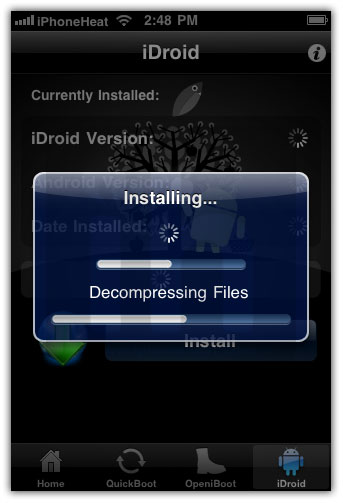
  • Select iDroid tab at bottom and then hit the Install button.
install android 2.2.1 froyo on iPhone

Step 5

Tap the OK button. Bootlace will download and install android on iPhone.
install android 2.2.1 froyo on iPhoneinstall android 2.2.1 froyo on iPhoneinstall android 2.2.1 froyo on iPhone

Step 6

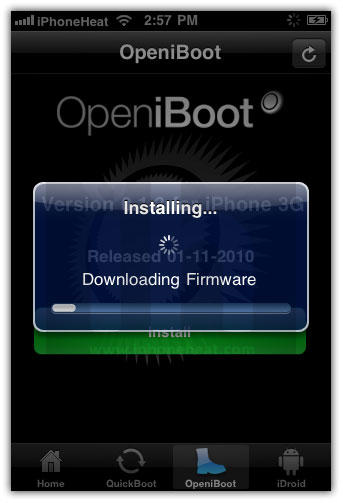
Once the Android installation process is completed, go to OpeniBoot tab at bottom and hit the install button.
install android 2.2.1 froyo on iPhoneinstall android 2.2.1 froyo on iPhoneinstall android 2.2.1 froyo on iPhone

Step 7

  • Once done, tap on the Configure button.
  • Make your choice, and hit save button.
install android 2.2.1 froyo on iPhone
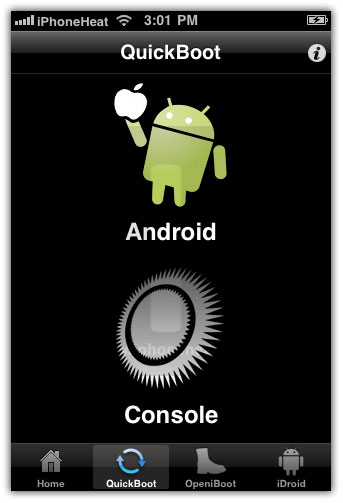
Go to Quickboot tab and tap on Android to boot your iPhone into Android 2.2.1 Froyo.
install android 2.2.1 froyo on iPhoneinstall android 2.2.1 froyo on iPhone
Future Android for iPhone updates can be found under iDroid tab (Step 4).

Twitter Delicious Facebook Digg Stumbleupon Favorites More